
This article explains how to change the whole design, or some of the units, to a completely different door style. This is known as changing a model.
On opening a new Design, you will be asked automatically to choose a catalogue and a model in Drawing settings. The catalogue chosen determines what models can be chosen. Once chosen you can change the model if required:
Changing the main model of a drawing
-
Press the F7 key on your keyboard to open the Drawing settings, or go to Design > Settings on the menu bar.
-
Click the Change model … button on the right-hand side of the window.
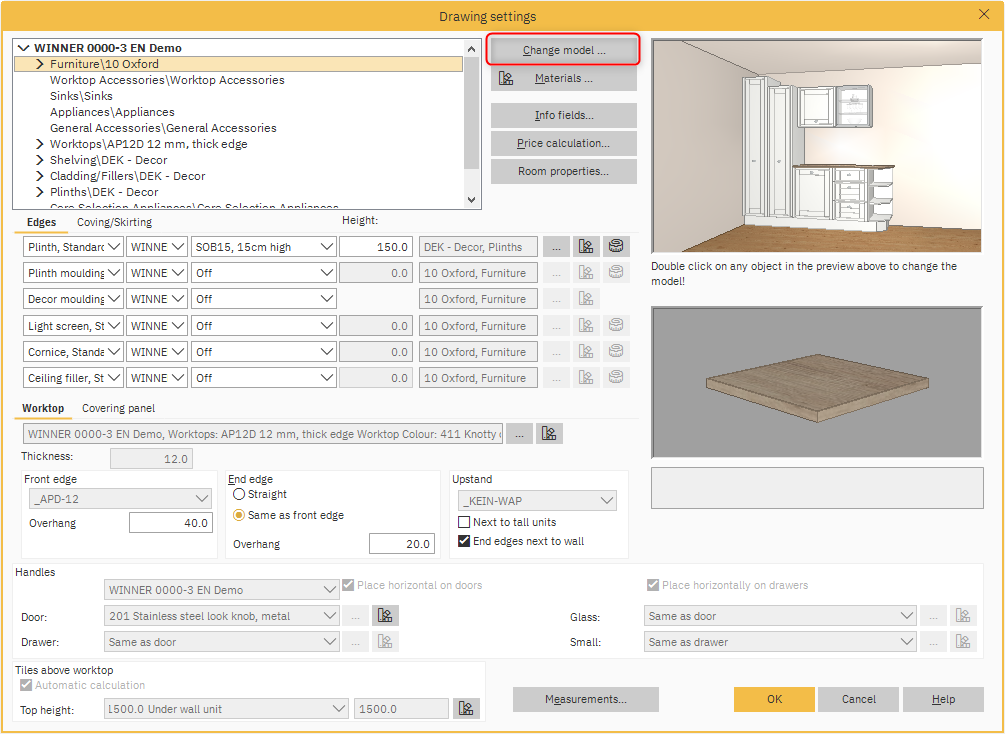
-
Choose your new model from the drop downs and click OK to save your changes.
Changing the model on one or more units
-
Select the unit you want to change by left clicking it. (Hold Shift + left click to select multiple units).
-
Right click the unit(s) and select Change model then Special from the menu.
- Choose your new model from the drop downs and click OK to save your changes.
For choosing a model for worktops, see Select model: Worktop